YouTube Transcript: Free

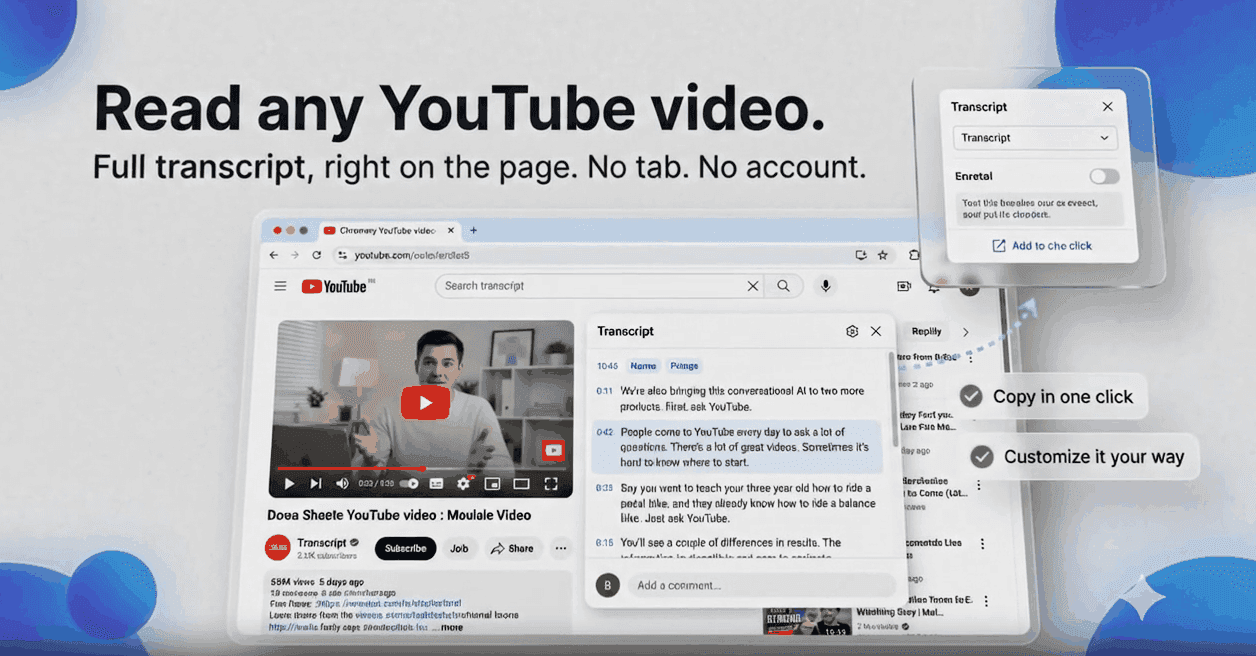
Free YouTube to text converter — turn any video into readable text. No new tab, no account: the full transcript appears right on the page.

Works with Chrome, Edge, Brave, Arc, Opera, and Vivaldi

YouTube Transcript extension demo video preview
Simple by design

Three clicks and you're done

No account, no settings, no fuss — just open YouTube and read.

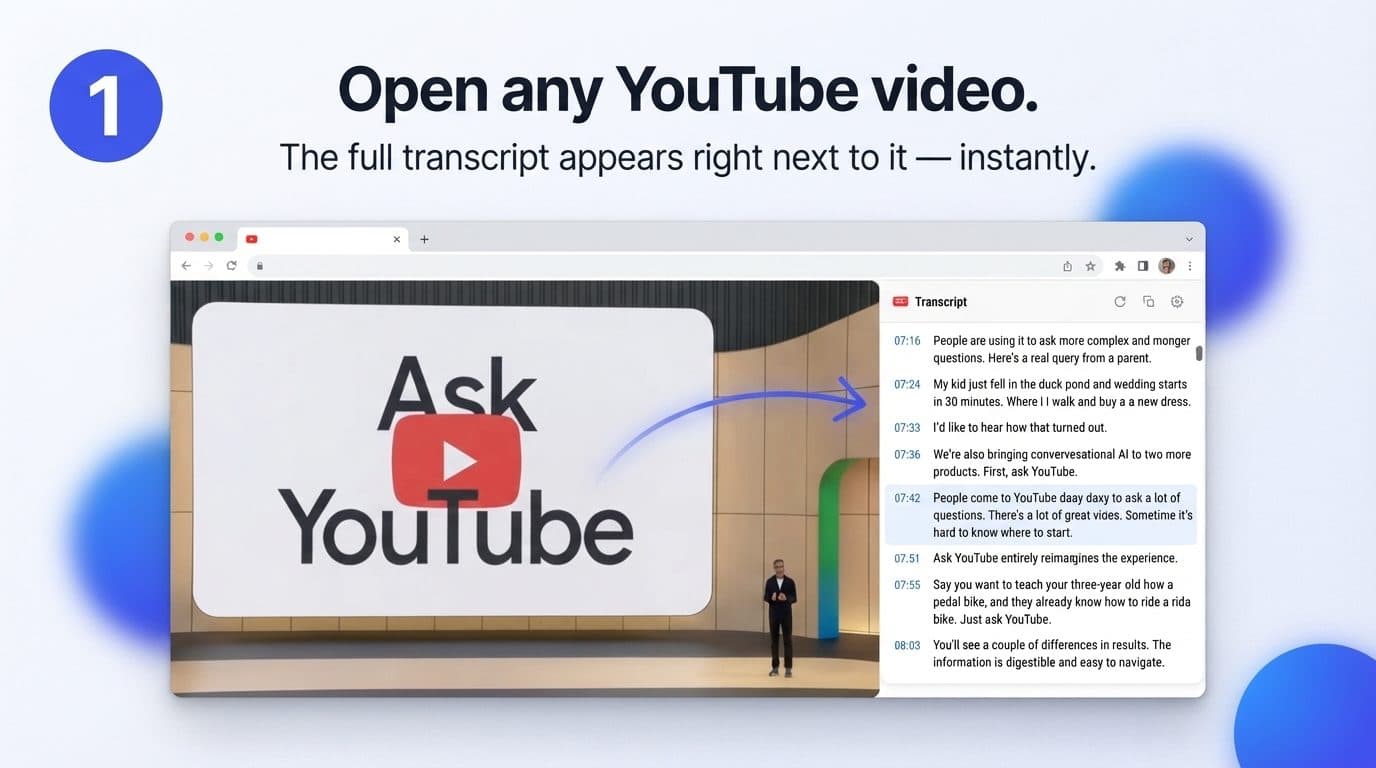
Open any YouTube video

View the full transcript

Click any line to jump

Copy & use anywhere

Open any YouTube video visualization

Ready to get started? Install in 10 seconds.

Add to Chrome — It's Free
Features

Everything you need, nothing you don't

Built for readers, researchers, and creators who value their time.

0
Extra tabs needed

Full Transcript on the Page

No new tab, no copy-paste juggling. The panel lives right next to the player — always visible, always in sync with the video.

1-click
To any moment

Click Any Line to Jump

Click any line and the player jumps straight to that moment. Navigate hour-long videos in seconds.

1-click
Full copy

Copy as Plain Text

One button copies the entire transcript to your clipboard, clean and ready to paste into notes, docs, or AI tools.

100%
Clean text

Clean Output

Strips [Music], [Applause], and other noise tokens automatically. Read the actual speech, not the distractions.

Use Cases

Built for how you actually use YouTube

Whether you're studying, researching, or just short on time — the transcript panel fits your workflow.

For Students

Turn lectures into study material

No more rewinding. Scan the transcript to find what matters, jump to the exact moment, and copy clean notes in one click.

  • Review a full lecture before class by reading the transcript instead of rewatching
  • Click any line to re-watch only the parts you're unsure about
  • Paste clean transcript text into your notes — no [Music] noise
FAQ

Frequently Asked Questions

Everything you need to know about the extension.

Install the free YouTube Transcript extension from the Chrome Web Store, then open any YouTube video the way you normally would. The transcript panel appears automatically next to the player — there is nothing to configure, no account to create, and no separate website to visit. The panel shows the complete transcript with a timestamp for every line, generated from the video's captions. From there you can read the whole video as text, search within the transcript to find a specific phrase, click any line to jump the video to that exact moment, or copy the entire transcript as clean plain text in one click. Install once, and every YouTube video you open afterwards shows its transcript right on the page.

YouTube's own "Show transcript" button exists, but it is hidden behind extra clicks in the video description, and it offers no clean way to copy the text — selecting from it drags timestamps and formatting along. YouTube Transcript removes that friction: the full timestamped transcript appears automatically next to every video, so you never hunt for the button. You can search within the transcript, click any line to jump the video to that exact moment, and copy the entire cleaned-up text in one click — with [Music], [Applause], and other noise tokens stripped out, so the result reads like a document instead of a caption dump. It turns a hidden, read-only feature into a fast, copy-friendly workflow that is always one glance away.

Yes. YouTube Transcript works with both caption types YouTube provides: manual captions uploaded by the creator and automatic captions generated by YouTube's speech recognition. If a video has any transcript available on YouTube, the extension will display it in the panel with timestamps, and every feature — search, click-to-jump navigation, and one-click copying — works the same way for both types. Keep in mind that the text quality of auto-generated captions depends on YouTube's speech recognition: clear speech usually transcribes well, while heavy accents, background music, or overlapping speakers can introduce mistakes. The extension shows the captions exactly as YouTube provides them, so a video with rough auto-captions will have the same roughness in its transcript. Videos with no captions at all have no transcript to show.

There are two separate things here. The extension's own interface — buttons, menus, and settings — is available in six languages: English, German, French, Hindi, Korean, and Japanese. Transcripts themselves are not limited to that list: YouTube Transcript displays the transcript in whichever language the video's captions come in, whether they were added manually by the creator or auto-generated by YouTube. That means a Spanish lecture, a Japanese interview, or a Portuguese tutorial all work, as long as YouTube has captions for them. If a video offers captions in several languages, the transcript reflects the caption track the video provides. In practice, if you can enable captions on a video, the extension can show you its transcript — regardless of what language it is in.

Yes, YouTube Transcript is completely free, and there is no catch behind that word. There is no subscription, no trial period that expires, no premium tier holding back features, no hidden fees, and no usage limits — you can open as many transcripts as you want, every day. Every feature is included for everyone: the automatic transcript panel, timestamps, search within the transcript, click-to-jump navigation, and one-click copying of the cleaned-up text. There is also no account requirement, so the extension never asks for an email address or payment details at any point. Just install it from the Chrome Web Store and start using it immediately. The project is independent and self-funded, built and maintained by a solo developer — see the About page for the story behind it.

No. YouTube Transcript works entirely in your browser. Transcripts are fetched directly from YouTube on your device, and nothing is sent to any third-party server. No personal data is collected, stored on servers, or shared with anyone; there is no analytics, no tracking, and no advertising code. The extension never sees your browsing history, your YouTube account, or your identity. The only data it keeps is local: transcripts are cached on your own device so repeat visits to the same video load faster, and your settings are stored locally as well. That cache never leaves your machine and disappears if you clear your browser data or uninstall the extension. The full details are spelled out in the privacy policy on this site.

YouTube Transcript works with any video that has captions available on YouTube — which in practice covers the vast majority of content, since YouTube auto-generates captions for most videos in major languages. Both manually added and auto-generated captions are supported, in any language, across regular videos, long lectures, podcasts, and interviews. The exceptions are videos where YouTube itself has no captions: some very new uploads that have not been processed yet, videos where the creator has disabled captions, and content in languages YouTube's speech recognition does not cover. In those cases there is simply no transcript for the extension to display. A quick rule of thumb: if YouTube's own player can show captions for a video, YouTube Transcript can show you its full, timestamped, copyable transcript.

Absolutely. YouTube Transcript requires no account, no sign-up, and no email — there is nothing to register, nothing to verify, and nothing to log into. Install the extension from the Chrome Web Store and it works immediately on the next YouTube video you open, with no onboarding steps in between. You do not need to be signed in to YouTube either: the transcript panel works the same whether you are logged into a Google account or browsing anonymously. This is a deliberate design choice — because there are no accounts, there is nothing to link your usage to, which is also why the extension can honestly promise no data collection. At no point will you hit a registration wall, an email prompt, or a "create profile to continue" screen.

YouTube Transcript currently supports Google Chrome and any Chromium-based browser that can install extensions from the Chrome Web Store. That includes Microsoft Edge, Brave, Arc, Opera, and Vivaldi — in each of them, the same Chrome Web Store listing installs and works without extra steps. Firefox and Safari are not supported at the moment, because they use different extension platforms; if that changes, this FAQ will say so. On mobile, the standard Chrome app for Android and iOS does not support desktop extensions, so the extension is a desktop tool first. If you are on an unsupported browser, YouTube's built-in "Show transcript" button remains an alternative for reading captions, though without the search, click-to-jump, and clean one-click copy the extension adds.
Still have questions?Get in touch

Install free in 10 seconds — no account, no setup.

Start reading, not watching.

Add to Chrome — It's Free
Get in Touch

Contact Me

Have a question about the extension? Send a message and I'll get back to you personally.

Let's Start a Conversation

Bug reports, feature ideas, or just feedback on the extension — I read every message and reply myself.

Know how to make it better?

I'm always open to suggestions for making the extension easier to use and saving you even more time.

Found a bug?

Screenshots and steps to reproduce help me pinpoint the issue and fix it fast.

Have a great partnership idea?

Describe it in the form below and I'll get back to you after reviewing it.

Up to 10 images, 1MB each.